Console#
Introduction#
The VEXcode 123 Console is displayed in the Monitor window within VEXcode. Console blocks can display text, numbers, and variable values while a project is running.
Below is a list of all available blocks:
print — Displays text, numbers, or variable values in the Console.
set print precision — Sets how many decimal places are displayed when printing numbers.
clear all rows — Clears all rows in the Console.
set cursor to next row — Moves the cursor to the next row in the Console.
set print color — Sets the color used for text printed in the Console.
ask and wait — Displays a message in the Console and pauses the project until a response is entered in the Console.
answer — Reports the most recent response entered in the Console as text.
print#
The print stack block displays text, numbers, or variable values in the Console at the current row.
print [VEXcode] ▶
Parameters |
Description |
|---|---|
value |
The text, number, or variable value to display in the Console. |
expanding arrow |
Expands the block to include and set cursor to next row, which moves the cursor to the next row after the value is printed. If this option is not used, the next printed value appears immediately after the previous value on the same row. |
Example
  when started :: hat events
  [Display a message in the console.]
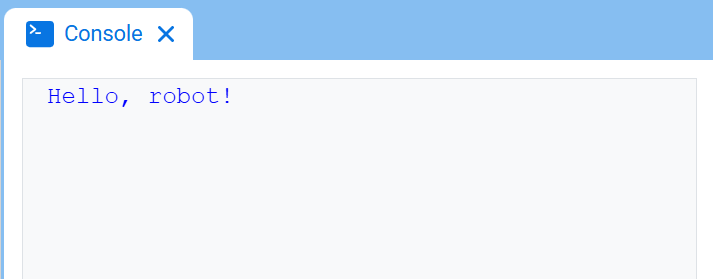
  print [Hello, robot!] ▶
set print precision#
The set print precision stack block sets how many decimal places are displayed when numbers are printed in the Console. This setting applies to numbers printed after this block is used. At the start of a project, the print precision is set to 1, so numbers will print with no decimal places.
set print precision to [0.1 v]
Parameters |
Description |
|---|---|
precision |
The print precision to use:
|
Example
  when started :: hat events
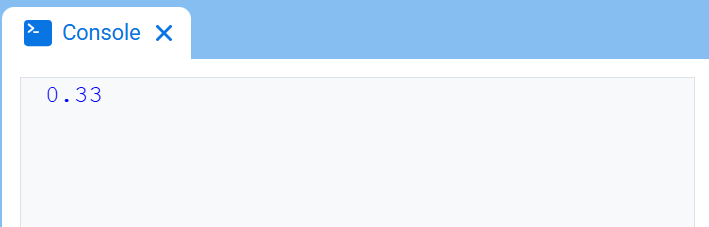
  [Display 1/3 with two decimals.]
  set print precision to [0.01 v]
  print ([1] [math_division v] [3]) ▶
clear all rows#
The clear all rows stack block clears all rows from the Console and moves the cursor back to the first row.
clear all rows
Parameters |
Description |
|---|---|
This block has no parameters. |
Example
  when started :: hat events
  [Clear the console after printing.]
  print [This will disappear...] ▶
  wait [2] seconds
  clear all rows
set cursor to next row#
The set cursor to next row stack block moves the cursor to the next row in the Console. The next value printed will appear on that row.
Use this block when you want the next printed value to start on a new row. If this block is not used, and the previous print block was not expanded to include and set cursor to next row, the next printed value will appear immediately after the previous value on the same row.
set cursor to next row
Parameters |
Description |
|---|---|
This block has no parameters. |
Example
  when started :: hat events
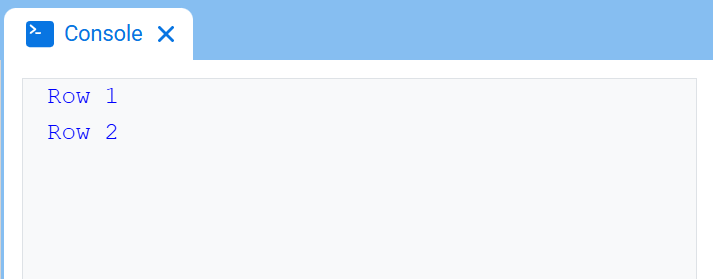
  [Print on two rows.]
  print [Row 1] ▶
  set cursor to next row
  print [Row 2] ▶
set font color on console#
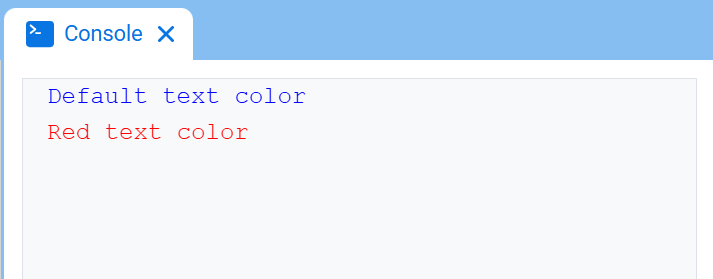
The set font color on console stack block sets the color used for text printed in the Console. At the start of a project, the print color is set to blue.
set font color to [red v] on console
Parameters |
Description |
|---|---|
color |
The color to use for text printed in the Console:
|
Example
  when started :: hat events
  [Print text in different colors.]
  print [Default text color] ▶
  set cursor to next row
  set font color to [red v] on console
  print [Red text color] ▶
ask and wait / answer#
The ask and wait stack block displays a message in the Console and pauses the project until a response is entered into the Console.
The answer reporter block reports the most recent response entered in the Console. The response is reported as text. To use the response as a number, use the convert reporter block to convert the answer to a number first.
ask [What's your name?] and wait
Parameters |
Description |
|---|---|
prompt |
The message to display in the Console. |
answer
Parameters |
Description |
|---|---|
This block has no parameters. |
Example
  when started :: hat events
  [Ask for a name, then greet the robot's user.]
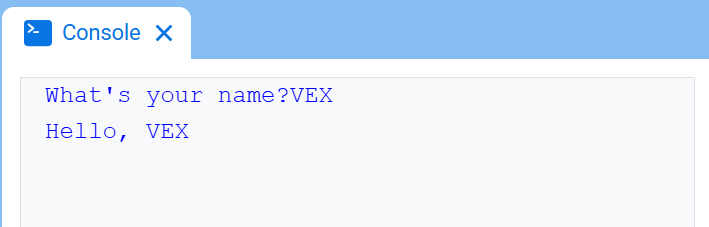
  ask [What's your name?] and wait
  print [Hello, ] ▶
  print (answer) ▶