Χρήση της Κονσόλας#
Connect to the Console Serial Port#
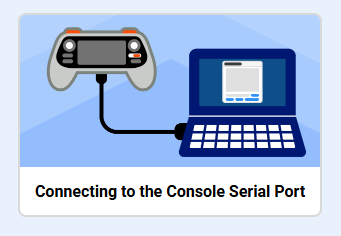
To print to the Console, the VEX AIR Drone Controller must be connected to the Console Serial Port.
For information on connecting to the Console Serial Port, open the Connecting to the Console Serial Port tutorial for Mac or Windows.
Send information to the controller#
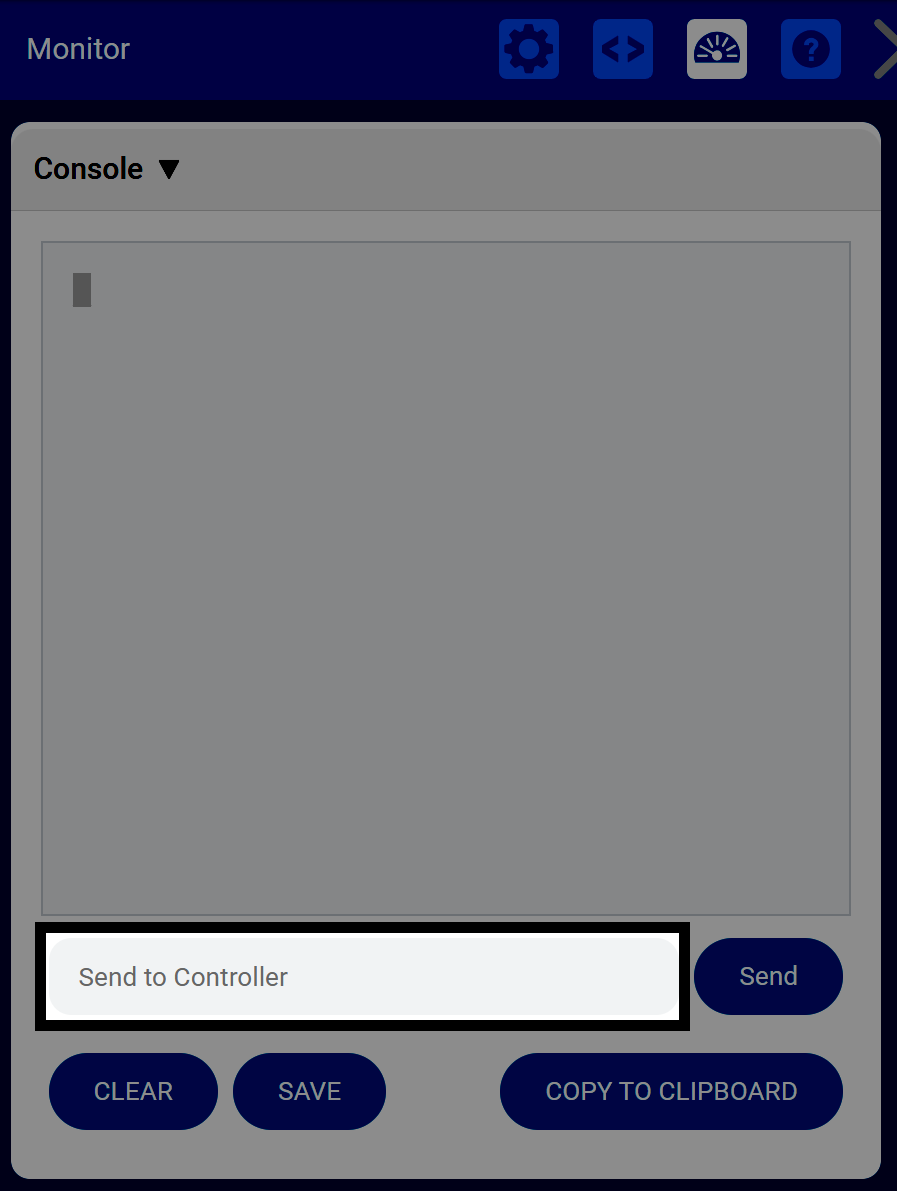
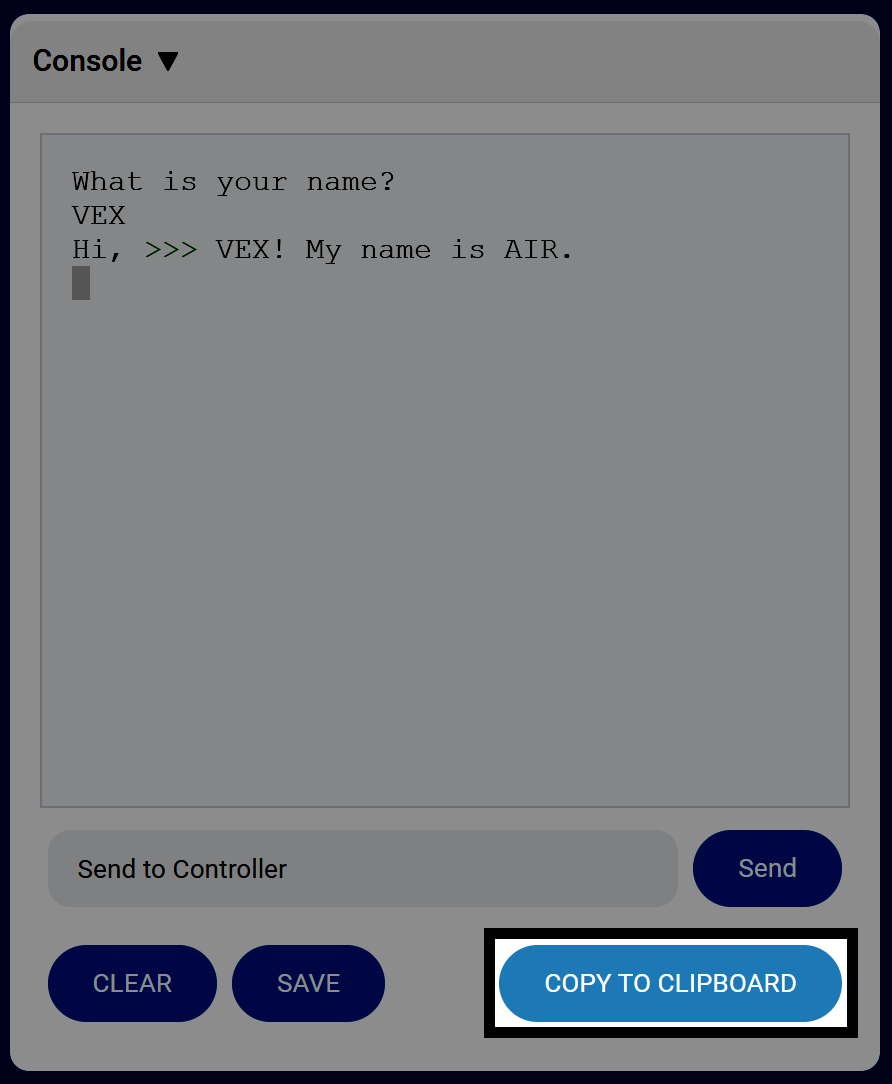
Enter your text in the Send to Controller text box, then select Send to send the string to the controller.
You can work with the sent information using the following commands in the Console category for Blocks or Python:
The Ask and wait block.#
ερώτηση [What's your name?] και αναμονή
The Answer block.#
απάντηση
answer = input("What's your name?")
Save from the Console#
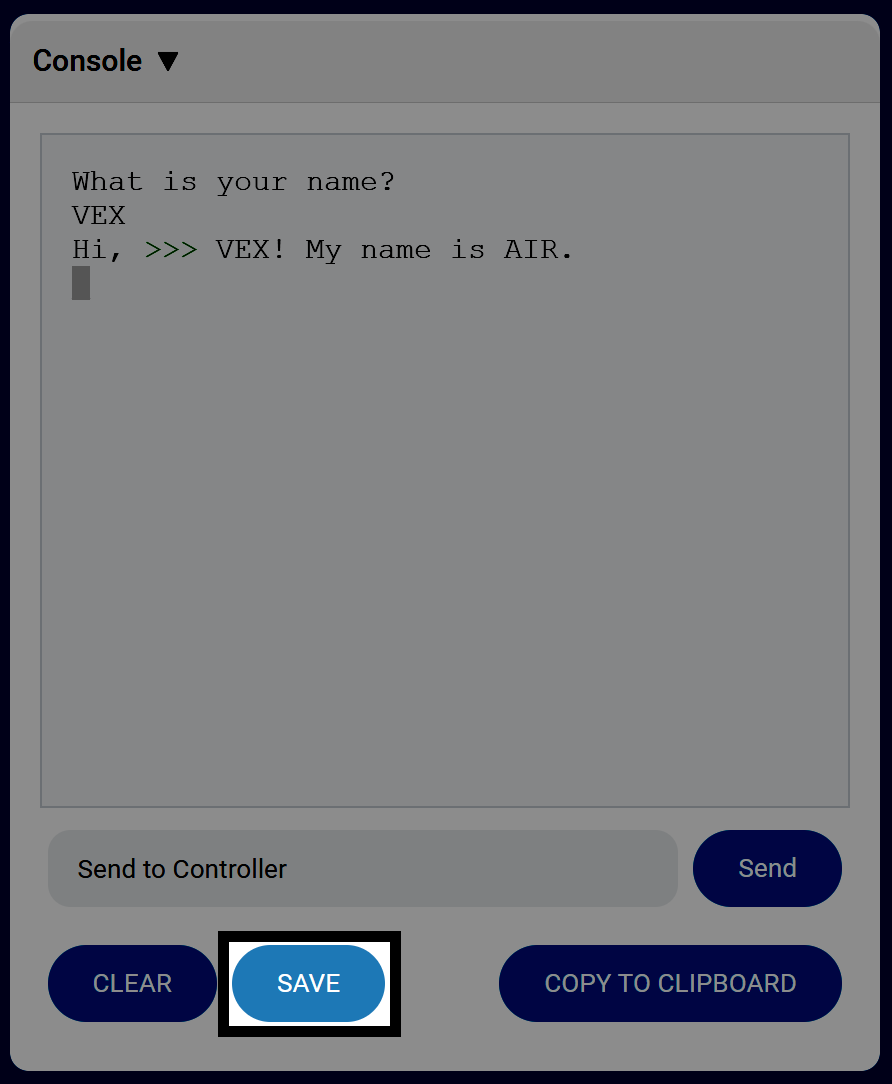
Επιλέξτε ΑΠΟΘΗΚΕΥΣΗ για να αποθηκεύσετε όλες τις πληροφορίες της Κονσόλας ως αρχείο .txt.
Copy from the Console#
Select COPY TO CLIPBOARD to save all Console information to your clipboard.
Clear the Console#
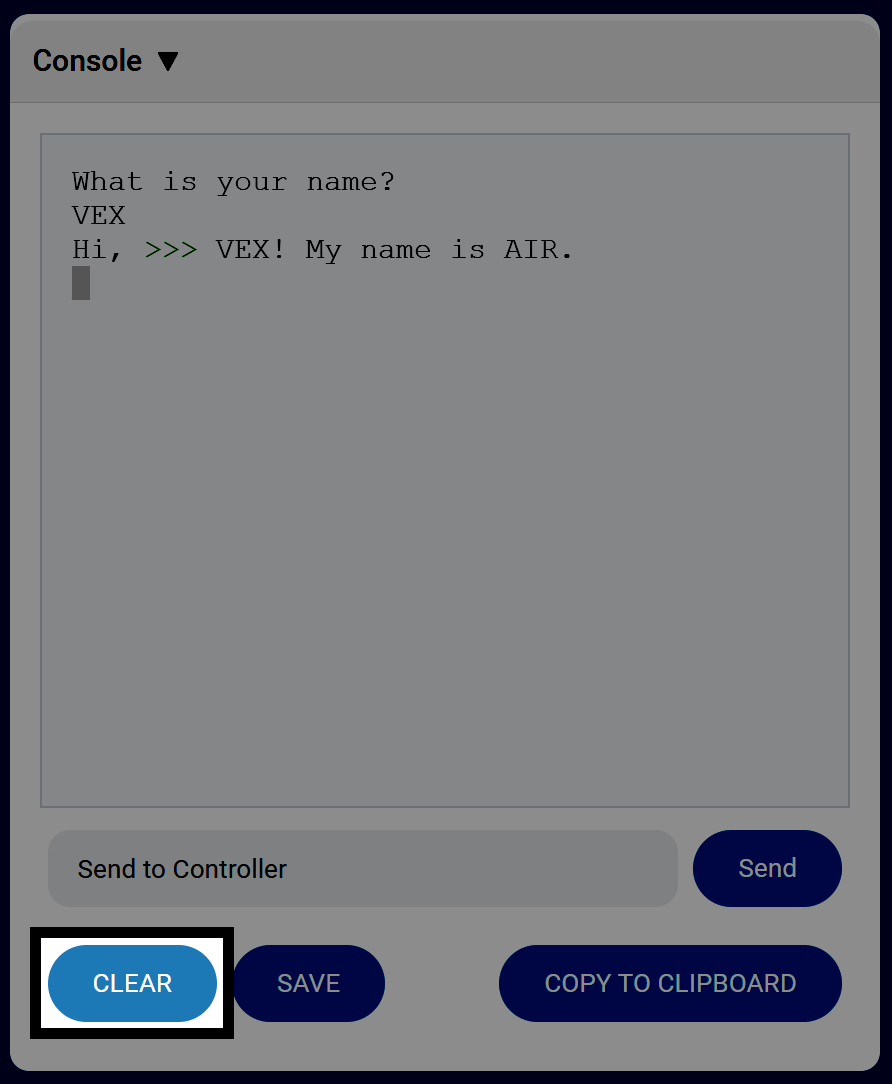
Επιλέξτε ΔΙΑΓΡΑΦΗ για να διαγράψετε όλες τις πληροφορίες από την Κονσόλα.