Ρύθμιση παραμέτρων υπογραφών χρώματος#
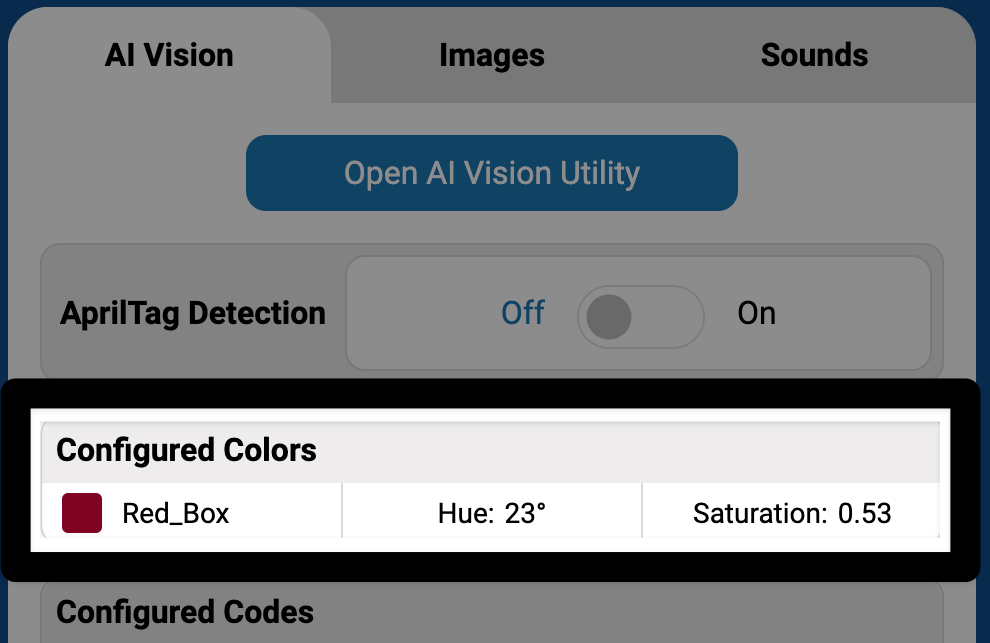
A color signature is one of two visual signatures used by the AI Vision Sensor to identify colors. It must be configured before the sensor can recognize it.
Note: A wired connection must be used to enable the AI Vision Utility and configure color signatures for the robot.
Creating a Color Signature#
Place a solid-colored object in front of the sensor#
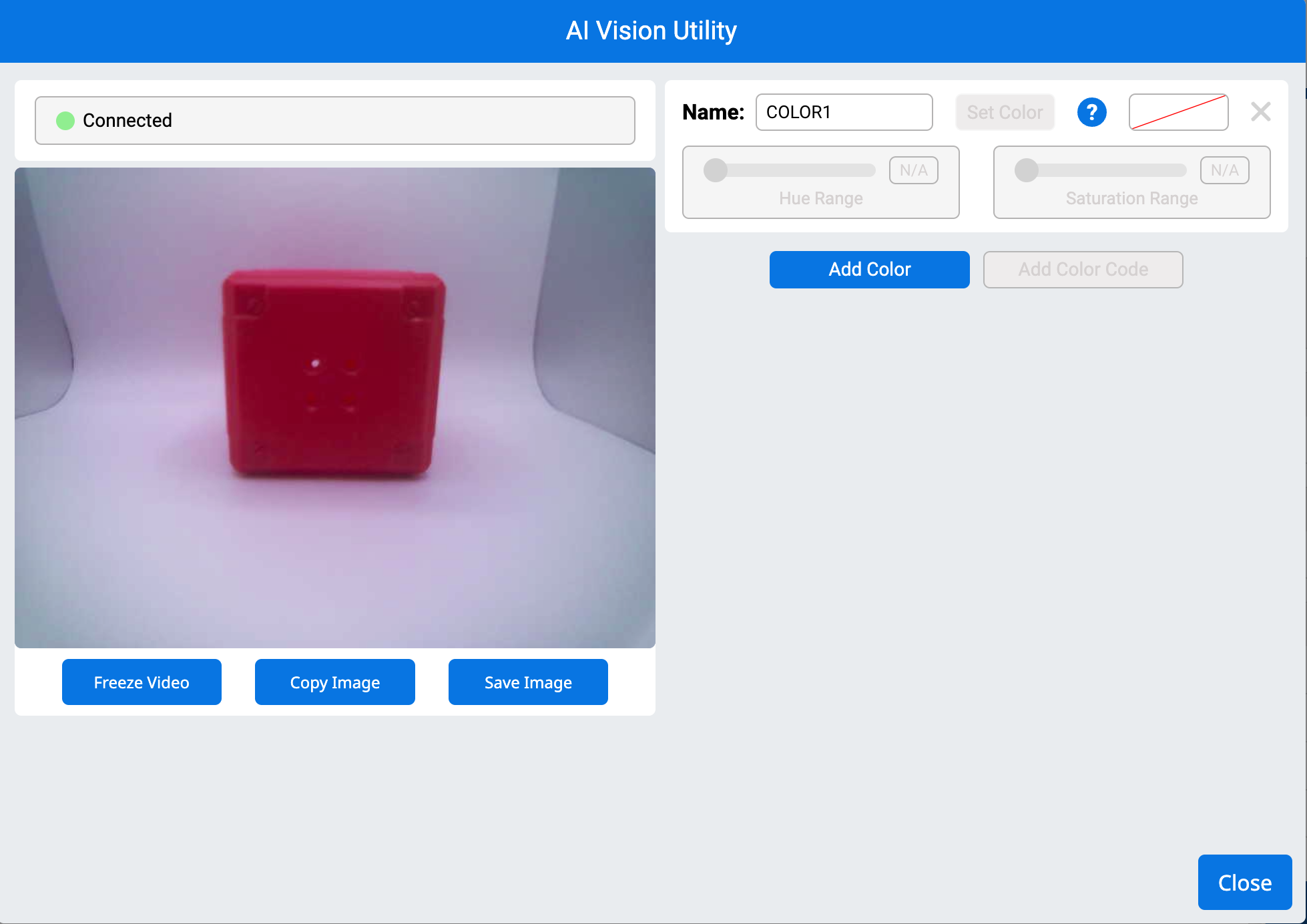
Drag cursor over the object#
A red box will outline the selected color. The video below shows the cursor being selected and dragged to outline a section of the front of the red box to identify that color selection.
Σημείωση: Παραμείνετε εντός της χρωματικής περιοχής για να αποφύγετε τη συμπερίληψη χρωμάτων φόντου που θα μπορούσαν να επηρεάσουν την ανίχνευση.
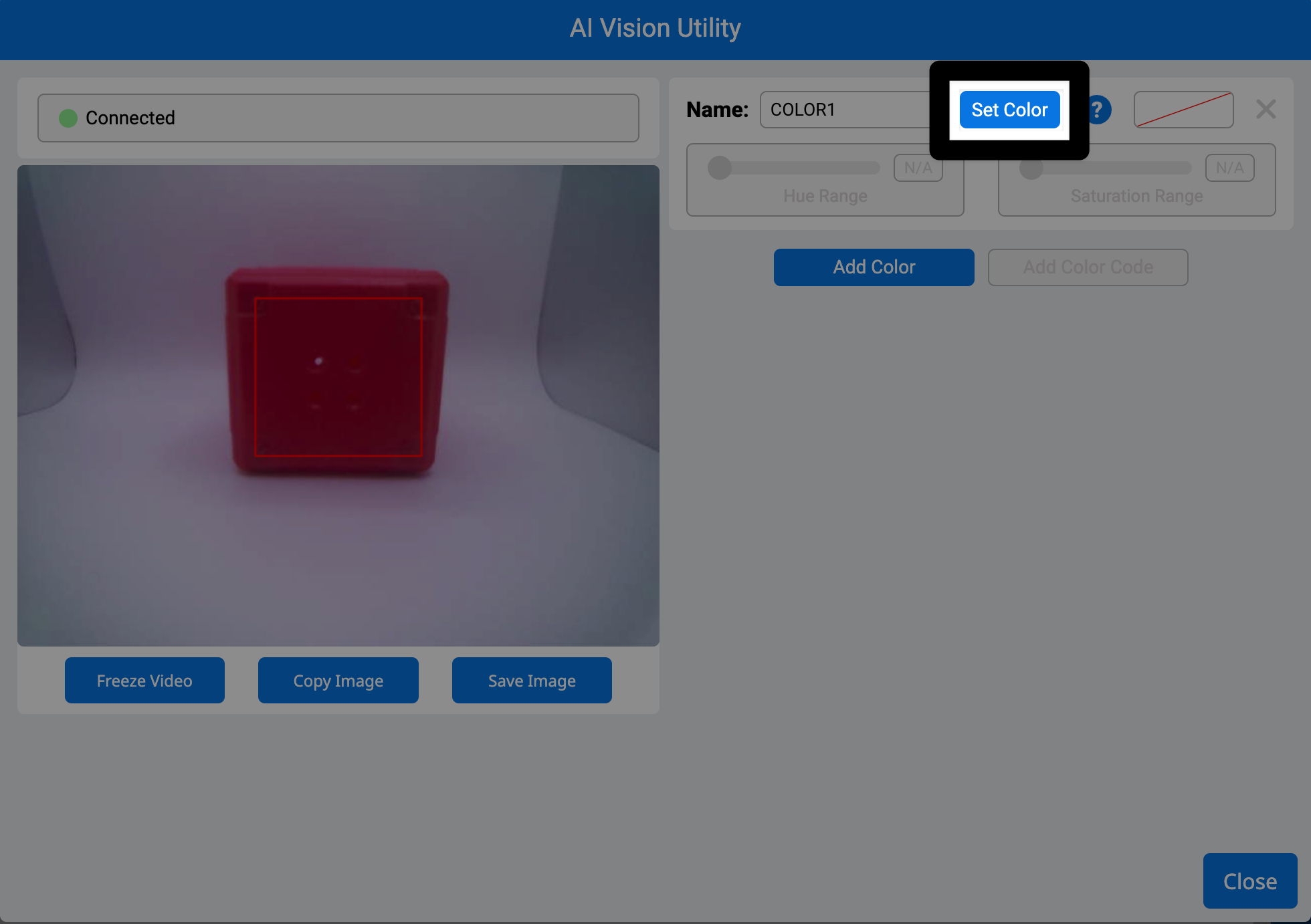
Select Set Color#
Once a color is set, the sensor will save it as a Color Signature.
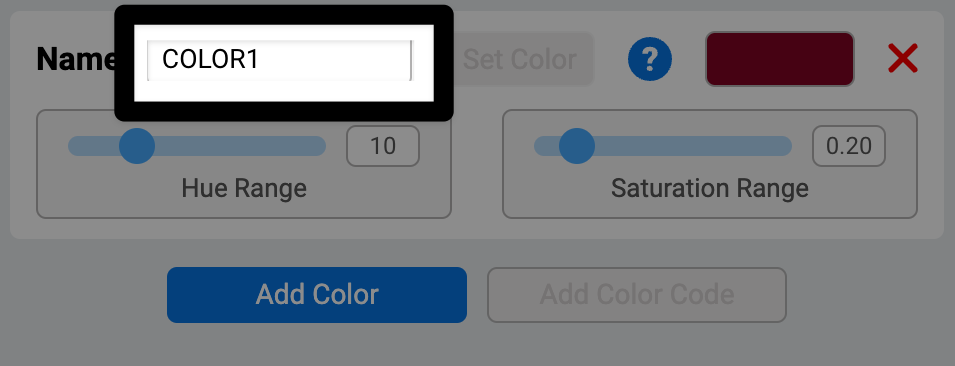
Rename the color signature by typing into the Name text field#
Tune a Color Signature#
Adjust the Hue Range#
Use the Hue Range slider to expand or narrow the range of colors around your selected hue. Watch the target box — increase the range until the box fully surrounds the object. The video below shows the target box change as the Hue Range is adjusted with the slider.
Note: Don’t go too far or it may include unwanted colors.
Adjust the Saturation Range#
Use the Saturation Range slider to include lighter or dimmer versions of the color. Adjust it until the box stays locked on the object, even in different lighting. The video below shows the target box adjust as the Saturation Range is adjusted with the slider.
Saving Color Signatures#
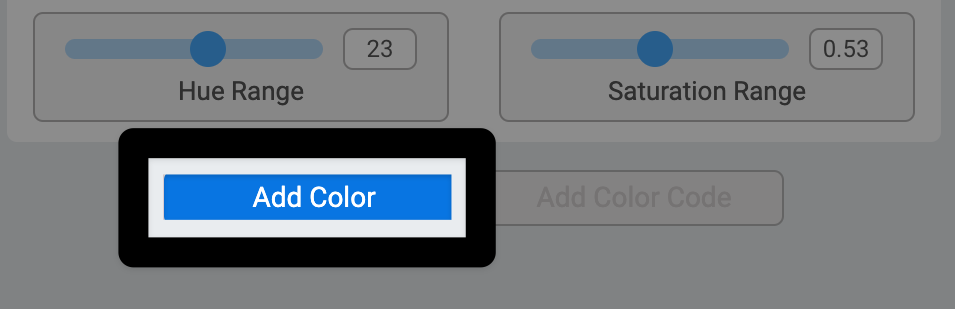
Select Add Color to set more Color Signatures#
The sensor can track up to 7 Color Signatures at a time.
Select Close#
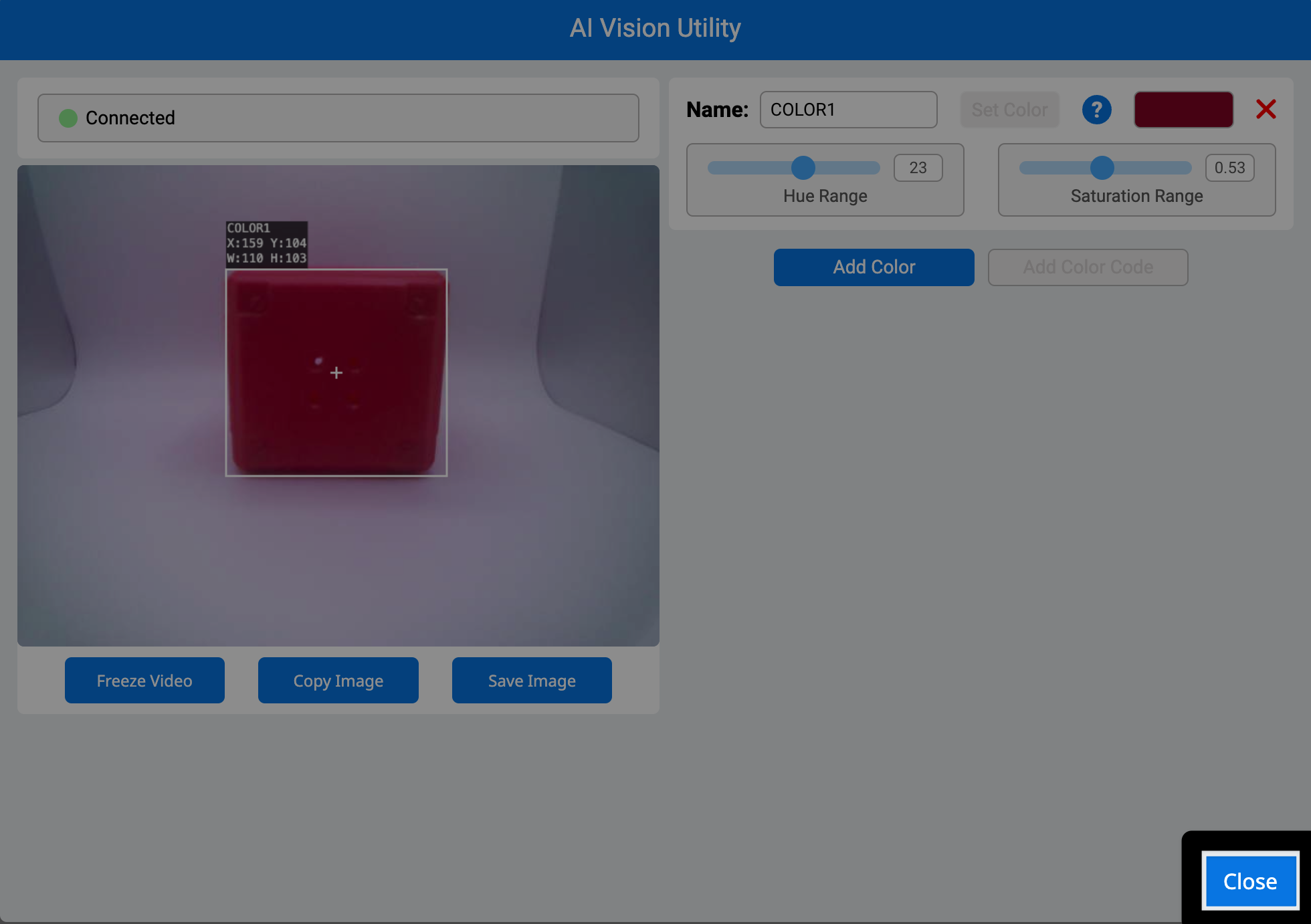
All configured color signatures will now appear in the AIM Control Panel.