• VEXcode Robotics Logo VEX Robotics Logo
  • VEX API Home Button VEX API Home Button
  • VEX 123 logo in purple VEX 123 logo in white
  • VEX GO logo in lime green VEX GO logo in white
  • VEXcode AIM logo in blue VEXcode AIM logo in white
  • VEX IQ logo in blue VEX IQ logo in white
  • VEX EXP logo in red VEX EXP logo in white
  • VEX V5 logo in red VEX V5 logo in white
  • VEX CTE logo in green VEX CTE logo in white
  • VEX AIR logo in orange VEX AIR logo in white
  • VEXcode VR logo in gold VEXcode VR logo in white
Μετάβαση στο κύριο περιεχόμενο
Ctrl+K

< Back to Platform Select

  • VEX AIM
  • Εκπαιδευτικά σεμινάρια VEXcode
  • Λήψη, εκτέλεση και διακοπή ενός έργου
Ελληνικά
  • English
  • Español
  • 简体中文
  • VEXcode Robotics Logo

Πλοήγηση ενότητας

  • Μπλοκ
  • Πύθων
  • Εκπαιδευτικά σεμινάρια VEXcode
    • Connecting with a Wireless Connection (Web)
    • Σύνδεση με ασύρματη σύνδεση (Εφαρμογή)
    • Δημιουργία, Άνοιγμα και Αποθήκευση Έργου
    • Λήψη, εκτέλεση και διακοπή ενός έργου
    • Ονομάζοντας το Ρομπότ
    • Σύνδεση με ενσύρματη σύνδεση (Εφαρμογή)
    • Σύνδεση με ενσύρματη σύνδεση (Mac)
    • Σύνδεση με ενσύρματη σύνδεση (Windows)
    • Σύνδεση δύο ρομπότ
    • Ρύθμιση παραμέτρων υπογραφών χρώματος
    • Ρύθμιση κωδικών χρωμάτων
  • WebSocket

Πλοήγηση πλατφόρμας

  • VEX 123 logo in purple VEX 123 logo in white
  • VEX GO logo in lime green VEX GO logo in white
  • VEXcode AIM logo in blue VEXcode AIM logo in white
  • VEX IQ logo in blue VEX IQ logo in white
  • VEX EXP logo in red VEX EXP logo in white
  • VEX V5 logo in red VEX V5 logo in white
  • VEX CTE logo in green VEX CTE logo in white
  • VEX AIR logo in orange VEX AIR logo in white
  • VEXcode VR logo in gold VEXcode VR logo in white

Λήψη, εκτέλεση και διακοπή ενός έργου#

  • Downloading a project

    • Select the Download button in the VEXcode AIM Toolbar

    • Save if needed

    • Wait for the Download Progress Bar

  • Running a project

    • Select the Run button in the VEXcode AIM Toolbar

  • Stopping a project

    • Select the Stop button in the VEXcode AIM Toolbar

When your VEX AIM Coding Robot is connected to VEXcode AIM, the Robot icon will turn green and the Download, Run, and Stop buttons become active.
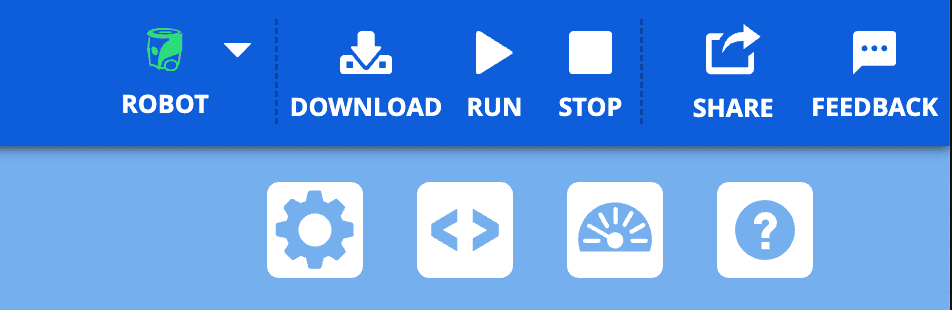
Screenshot of the the upper right hand corner of the VEXcode AIM Toolbar with the Robot icon showing green and the Download, Run, and Stop buttons to the right.

Downloading a project#

Select the Download button in the VEXcode AIM Toolbar#
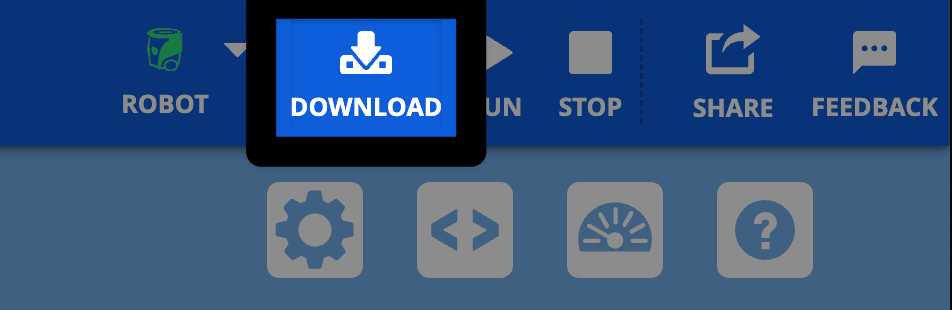
The same image of the upper right corner with the Download button highlighted, to the right of the green Robot icon.

Save if needed#

If your project is not saved yet, you will be prompted to save it. Select OK to save your project.
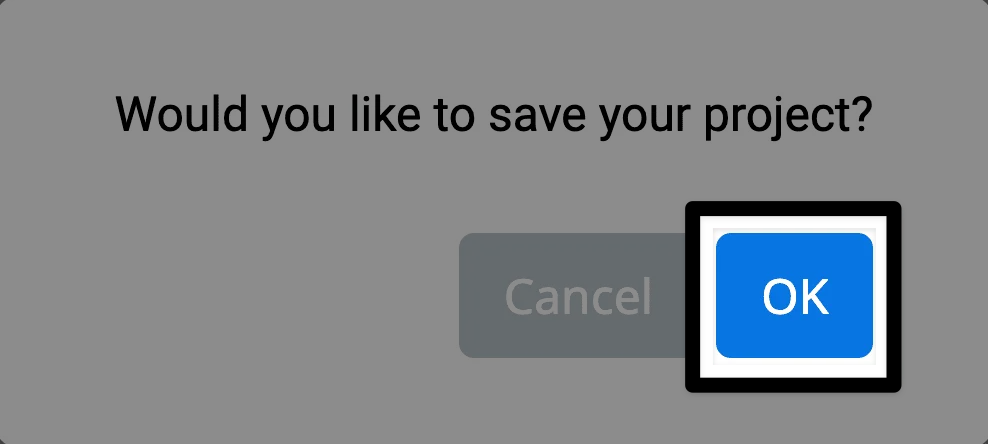
A prompt reads Would you like to save your project? In the lower right corner, the OK button is highlighted.

Wait for the Download Progress Bar#

A progress bar is shown that reads Starting Download Process.

Note: By default, projects download to Slot 1. To change the slot, select the Slot icon and choose a different slot.
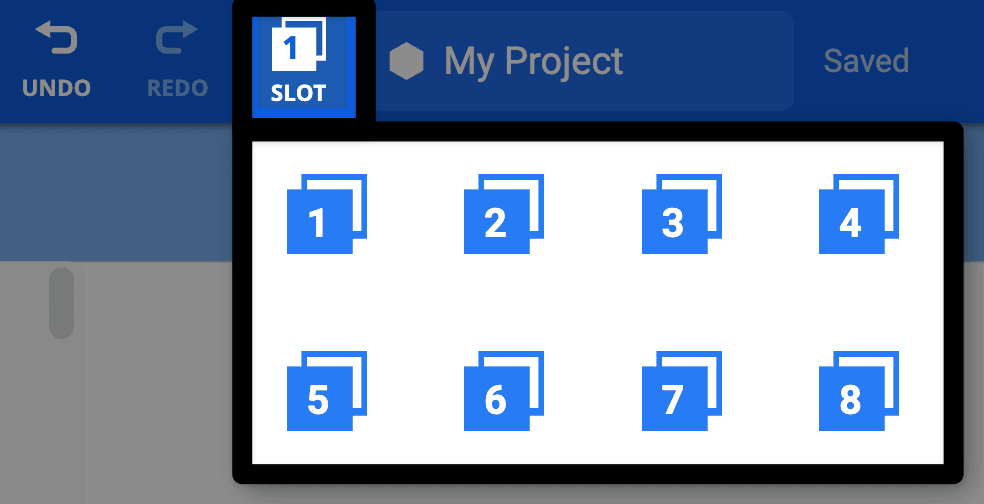
The center of the VEXcode AIM Toolbar is shown with the Slot number highlighted to the left of the project name dialog box. A dropdown showing available slots 1 through 8 is open, indicating what to select to change the slot number.

Running a project#

Select the Run button in the VEXcode AIM Toolbar#
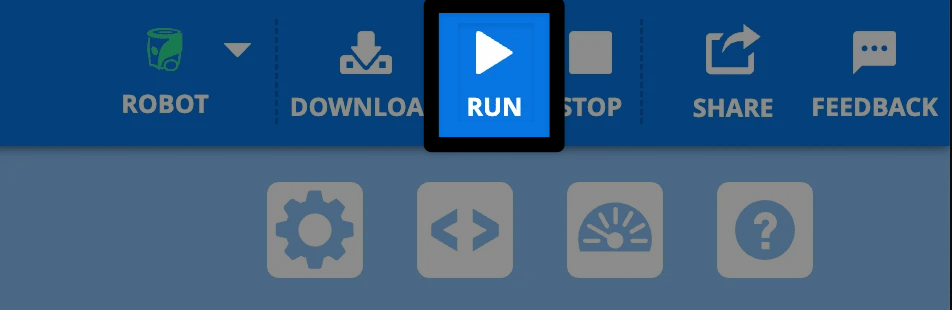
The upper right hand corner of the VEXcode AIM Toolbar with the Run button highlighted to the right of the Download button.

Stopping a project#

Select the Stop button in the VEXcode AIM Toolbar#
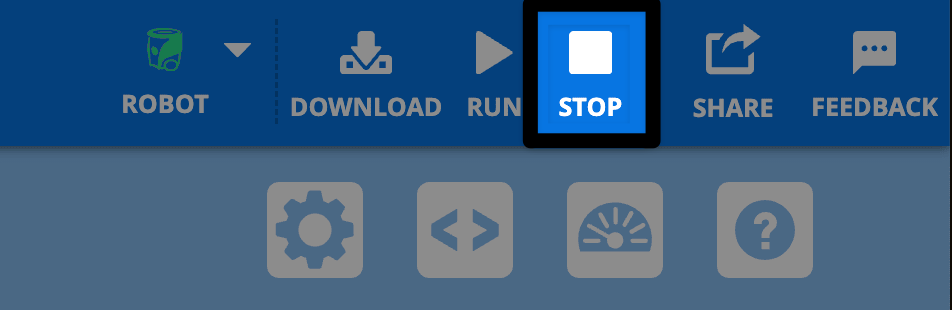
The same image as the one previous, this time with the Stop button to the right of the Run button highlighted.

προηγούμενο

Δημιουργία, Άνοιγμα και Αποθήκευση Έργου

επόμενο

Ονομάζοντας το Ρομπότ

On this page
  • Downloading a project
    • Select the Download button in the VEXcode AIM Toolbar
    • Save if needed
    • Wait for the Download Progress Bar
  • Running a project
    • Select the Run button in the VEXcode AIM Toolbar
  • Stopping a project
    • Select the Stop button in the VEXcode AIM Toolbar
Innovation First, International

Τα VEX και VEX Robotics είναι εμπορικά σήματα ή σήματα υπηρεσιών της Innovation First, Inc. Πνευματικά δικαιώματα ©2026. Με επιφύλαξη παντός δικαιώματος. Η VEX Robotics, Inc. είναι θυγατρική της Innovation First International, Inc. Όλα τα άλλα ονόματα προϊόντων/σήματα τρίτων αποτελούν ιδιοκτησία των αντίστοιχων κατόχων τους. Διπλώματα ευρεσιτεχνίας ή/και Διπλώματα ευρεσιτεχνίας σε εκκρεμότητα - innovationfirst.com/patents
Πολιτική απορρήτου ιστότοπου / Όροι χρήσης ιστότοπου / Πολιτική για τα cookie / Πολιτική απορρήτου λογισμικού

Επισκεφθείτε τη σελίδα VEX Robotics στο Facebook Επισκεφθείτε τη σελίδα VEX Robotics στο Twitter Επισκεφθείτε τη σελίδα VEX Robotics στο Instagram Επισκεφθείτε τη σελίδα VEX Robotics στο YouTube
Φόρμα σχολίων VEX API

Εκτιμούμε τα σχόλιά σας! Χρησιμοποιήστε αυτήν τη φόρμα για να μοιραστείτε προτάσεις, σχόλια ή να αναφέρετε σφάλματα με το VEX API. Η συμβολή σας μας βοηθά να βελτιώσουμε την τεκμηρίωση του VEX API.

Εάν αντιμετωπίζετε τεχνικά προβλήματα ή χρειάζεστε υποστήριξη πελατών, επισκεφθείτε τη διεύθυνση support.vex.com.

  • Send Happy Feedback
  • Send Sad Feedback

Σημείωση: η τρέχουσα διεύθυνση URL θα κοινοποιηθεί στο μήνυμά σας

Συμπεριλαμβάνοντας τη διεύθυνση ηλεκτρονικού ταχυδρομείου σας, συμφωνείτε ότι η VEX μπορεί να σας στέλνει ηλεκτρονικά μηνύματα εάν έχουμε ερωτήσεις σχετικά με τα σχόλιά σας.
Πολιτική Απορρήτου >
Παρακαλώ δώστε τα σχόλιά σας. Τα σχόλια υποβλήθηκαν με επιτυχία!
Choose Which VEX IQ Generation to View

VEX IQ (1st gen)

VEX IQ (2nd gen)