
Uso de bucles#
This tutorial walks you through using the repeat block to move the 6-Axis Arm up and down in VEXcode CTE. By the end, you’ll have a project that repeats the same two blocks three times.
If you want your arm to repeat the same action multiple times, you could keep duplicating the same blocks over and over. A simpler way, however, is to use the repeat block within the Logic - Control category.
Attach two increment arm position blocks below the when started block. Set the z parameter to 50 on the first block and -50 on the second, to move the arm up, then back down.
cuando inicie
incrementar posición de [brazo v] en x:[0] y:[0] z:[50] [mm v] ▶
incrementar posición de [brazo v] en x:[0] y:[0] z:[-50] [mm v] ▶
Attach a repeat block below the when started block.
cuando inicie
repetir (10)
fin
incrementar posición de [brazo v] en x:[0] y:[0] z:[50] [mm v] ▶
incrementar posición de [brazo v] en x:[0] y:[0] z:[-50] [mm v] ▶
Drag the increment arm position blocks inside the repeat block.
cuando inicie
repetir (10)
incrementar posición de [brazo v] en x:[0] y:[0] z:[50] [mm v] ▶
incrementar posición de [brazo v] en x:[0] y:[0] z:[-50] [mm v] ▶
fin
Select the repeat number and change it to 3, so the blocks inside run three times.
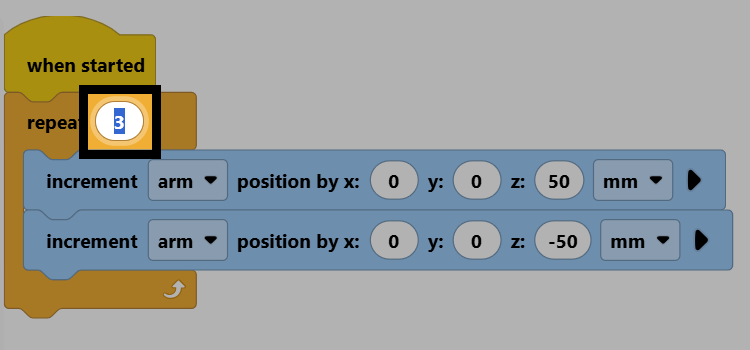
Make sure your arm is connected to VEXcode, then select Start to run the project. The arm will move up and down three times.

You can also repeat a sequence of actions forever, using the forever block instead of repeat.
por siempre
fin
To break out of a loop, use the break block within a loop, to make the code exit the looping block immediately.
interrumpir