• VEXcode Robotics Logo VEX Robotics Logo
  • VEX API Home Button VEX API Home Button
  • VEX 123 logo in purple VEX 123 logo in white
  • VEX GO logo in lime green VEX GO logo in white
  • VEXcode AIM logo in blue VEXcode AIM logo in white
  • VEX IQ logo in blue VEX IQ logo in white
  • VEX EXP logo in red VEX EXP logo in white
  • VEX V5 logo in red VEX V5 logo in white
  • VEX CTE logo in green VEX CTE logo in white
  • VEX AIR logo in orange VEX AIR logo in white
  • VEXcode VR logo in gold VEXcode VR logo in white
Skip to main content
Ctrl+K

< Back to Platform Select

  • VEX V5
  • VEX V5 API Reference
  • VEXcode Tutorials
English
  • Spanish
  • 简体中文
  • VEXcode Robotics Logo

Section Navigation

  • Blocks
  • Python
  • C++
  • VEXcode Tutorials
    • Navigating VEXcode
    • Device Setup: Drivetrain
    • Device Setup: Motors
    • Device Setup: Sensors
    • Device Setup: Controller
    • Moving and Removing Blocks
    • Moving Forward and Backward
    • Turning
    • Opening the Claw
    • Moving the Arm
    • Downloading and Running a Project
    • Using Loops
    • If Then Blocks
    • My Blocks
    • Storing Data
    • Using Events
    • Naming and Saving Your Project
    • Opening a Project
    • Competition Template
    • Using Examples and Templates
    • Using Help

Platform Navigation

  • VEX 123 logo in purple VEX 123 logo in white
  • VEX GO logo in lime green VEX GO logo in white
  • VEXcode AIM logo in blue VEXcode AIM logo in white
  • VEX IQ logo in blue VEX IQ logo in white
  • VEX EXP logo in red VEX EXP logo in white
  • VEX V5 logo in red VEX V5 logo in white
  • VEX CTE logo in green VEX CTE logo in white
  • VEX AIR logo in orange VEX AIR logo in white
  • VEXcode VR logo in gold VEXcode VR logo in white

VEXcode Tutorials#

VEX V5 tutorial tile for Navigating VEXcode.

Navigating VEXcode

VEX V5 tutorial tile for Device Setup: Drivetrain.

Device Setup: Drivetrain

VEX V5 tutorial tile for Device Setup: Motors.

Device Setup: Motors

VEX V5 tutorial tile for Device Setup: Sensors.

Device Setup: Sensors

VEX V5 tutorial tile for Device Setup: Controller.

Device Setup: Controller

VEX V5 tutorial tile for Moving and Removing Blocks.

Moving and Removing Blocks

VEX V5 tutorial tile for Moving Forward and Backward.

Moving Forward and Backward

VEX V5 tutorial tile for Turning.

Turning

VEX V5 tutorial tile for Claw.

Opening the Claw

VEX V5 tutorial tile for Arm.

Moving the Arm

VEX V5 tutorial tile for Downloading and Running a Project.

Download and Run a Project

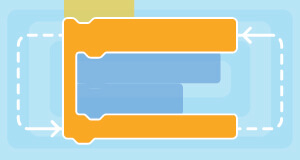
VEX V5 tutorial tile for Using Loops.

Using Loops

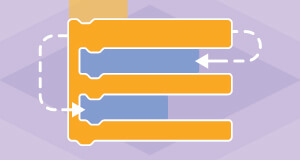
VEX V5 tutorial tile for If Then Blocks.

If Then Blocks

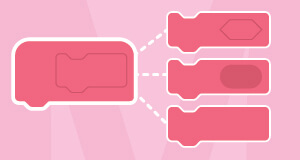
VEX V5 tutorial tile for My Blocks.

My Blocks

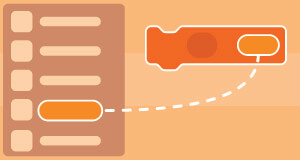
VEX V5 tutorial tile for Storing Data.

Storing Data

VEX V5 tutorial tile for Broadcasting.

Using Events

VEX V5 tutorial tile for Naming and Saving Your Project.

Naming and Saving Your Project

VEX V5 tutorial tile for Opening a Project.

Opening a Project

VEX V5 tutorial tile for Competition.

Competition Template

VEX V5 tutorial tile for Using Examples and Templates.

Using Examples and Templates

VEX V5 tutorial tile for Using Help.

Using Help

previous

Signal Tower

next

Navigating VEXcode

Innovation First, International

VEX and VEX Robotics are trademarks or service marks of Innovation First, Inc. Copyright ©2026. All Rights Reserved. VEX Robotics, Inc. is a subsidiary of Innovation First International, Inc. All other product names / marks of others are the property of their respective owners. Patents and / or Patents Pending - innovationfirst.com/patents
Site Privacy Policy / Site Terms of Use / Cookie Policy / Software Privacy Policy

Visit the VEX Robotics Facebook Page Visit the VEX Robotics Twitter Page Visit the VEX Robotics Instagram Page Visit the VEX Robotics YouTube Page
VEX API Feedback Form

We value your feedback! Use this form to share suggestions, compliments, or report errors with the VEX API. Your input helps us enhance the VEX API documentation.

If you are experiencing technical issues or require customer support, please visit support.vex.com.

  • Send Happy Feedback
  • Send Sad Feedback

Note: the current URL will be shared with your message

By including your email address, you agree that VEX may send you email emails if we have questions about your feedback.
Privacy Policy >
Please provide your feedback. Feedback submitted successfully!
Choose Which VEX IQ Generation to View

VEX IQ (1st gen)

VEX IQ (2nd gen)