Updating Arm Firmware#
This tutorial walks you through checking and updating the 6-Axis Arm’s firmware in VEXcode CTE. By the end, your arm will be running the latest firmware.
Make sure your arm is connected to VEXcode.
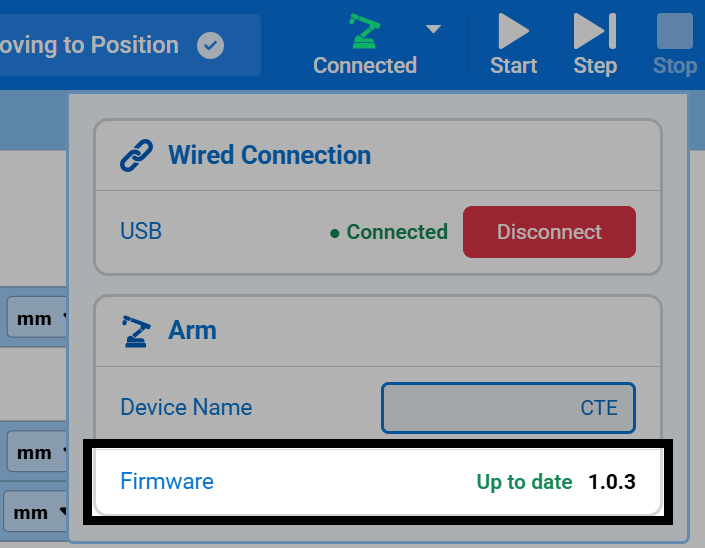
Select Connected at the top-right of VEXcode. The Firmware row in the Arm section shows whether the arm’s firmware is up to date, along with its version number.
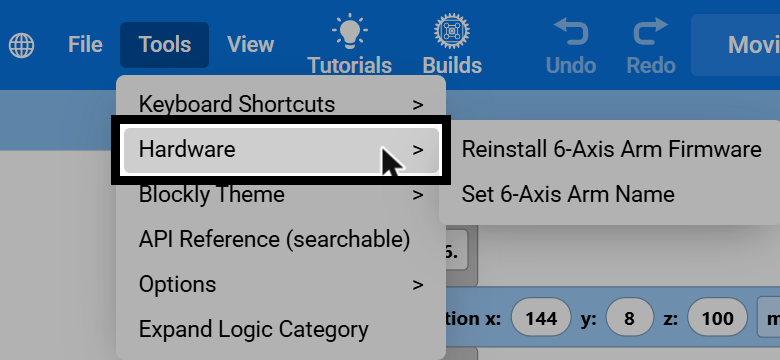
To install the latest firmware, select Tools in the top-left of VEXcode, then select Hardware.
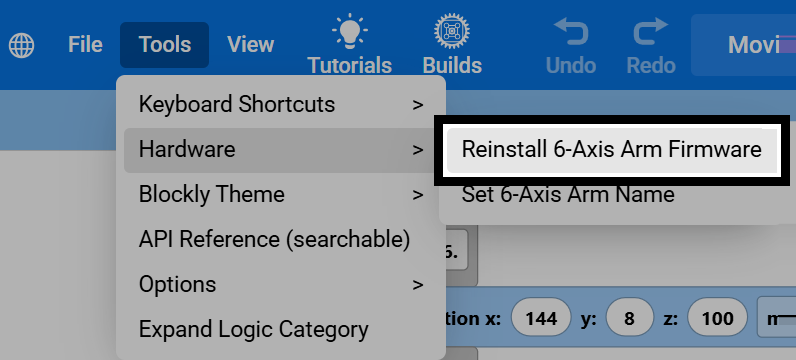
Select Reinstall 6-Axis Arm Firmware.
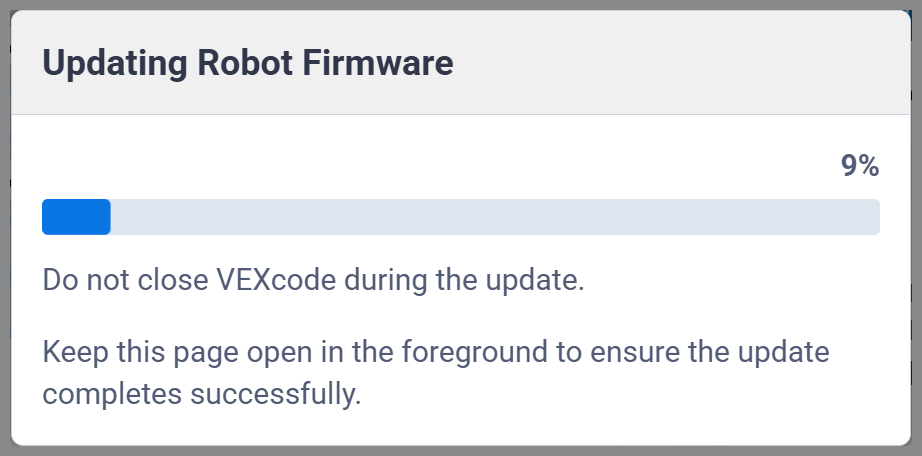
VEXcode will show the update’s progress. Do not close VEXcode, and keep the page open in the foreground until the update finishes.
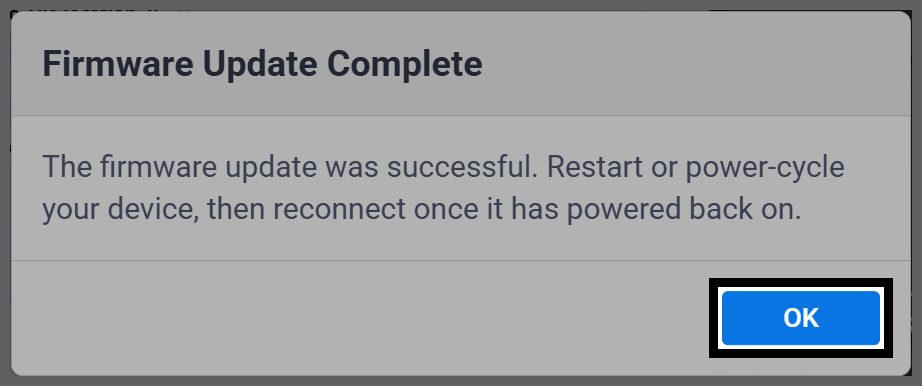
When the update is complete, select OK. Then restart or power-cycle the arm, and reconnect it to VEXcode once it has powered back on.