Connecting to Your Robot#

Connecting to Your Robot

This tutorial walks you through connecting your robot to VEXcode GO. By the end, you’ll have your robot connected wirelessly over Bluetooth.

  1. Press the power button on the Brain to turn it on.
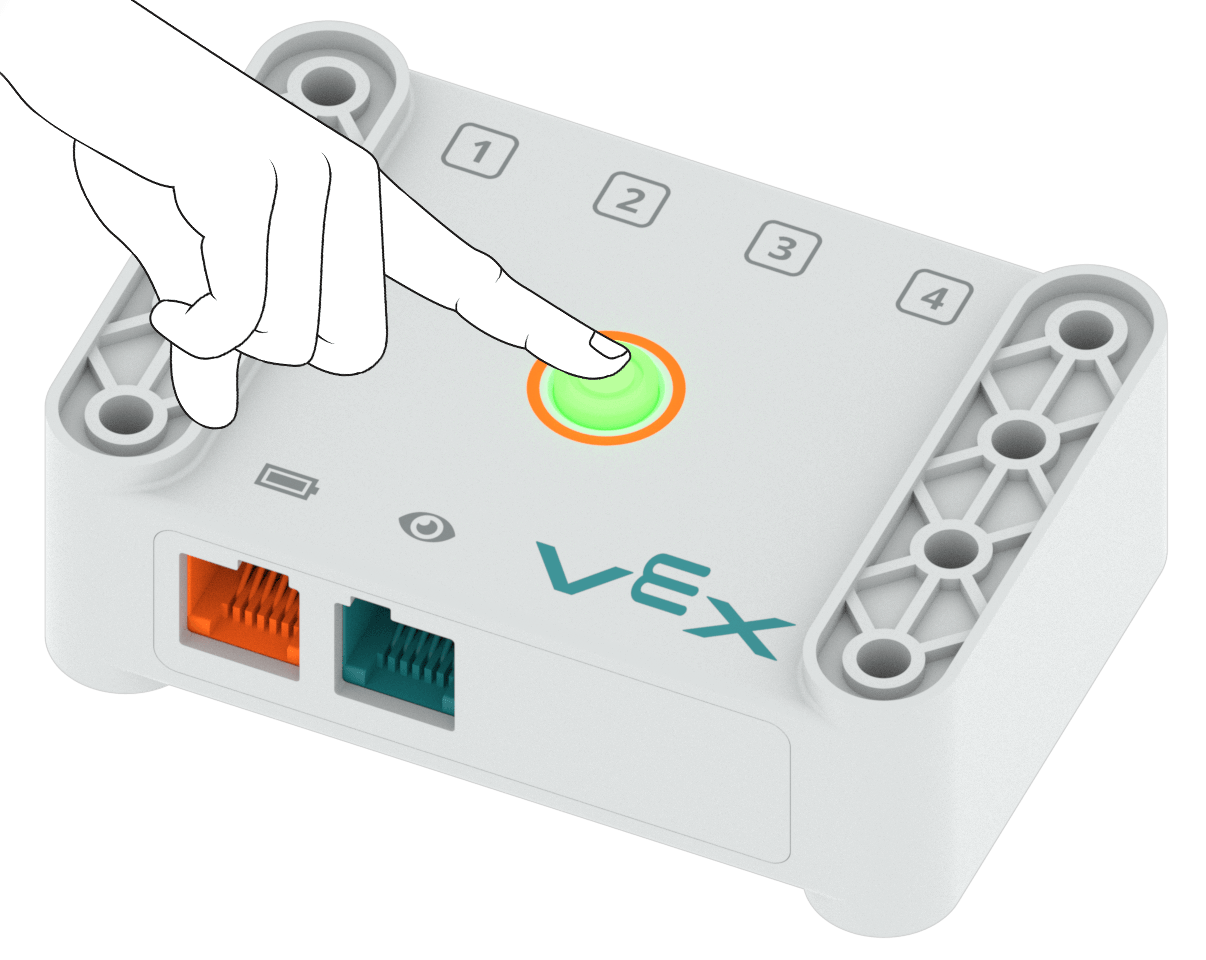
Photo of a finger pressing the power button on the VEX GO Brain.
  1. Select the Connect button at the top-right of VEXcode.
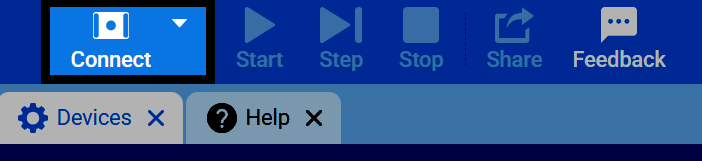
Screenshot of the VEXcode GO toolbar, with the Connect button highlighted.
  1. Select Connect next to Bluetooth, under the Wireless Connection section.
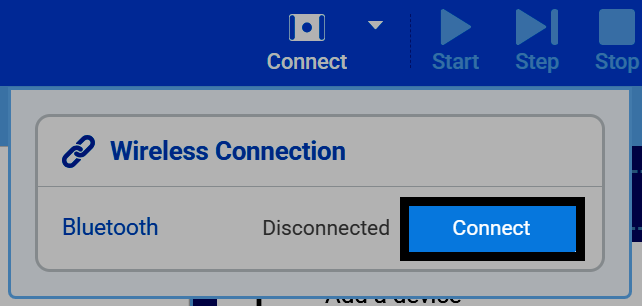
Screenshot of the Wireless Connection section, with the Connect button next to Bluetooth highlighted.
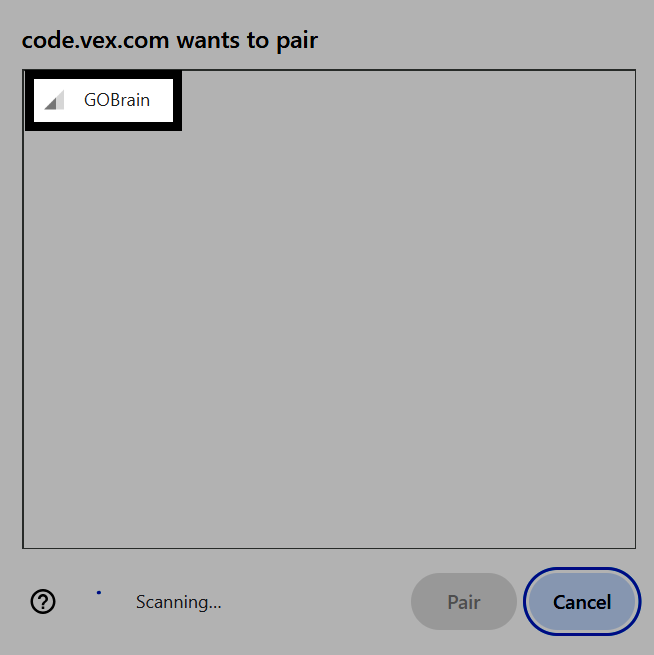
  1. Select your robot from the list.

Screenshot of the browser's Bluetooth pairing dialog, with a GOBrain device selected.
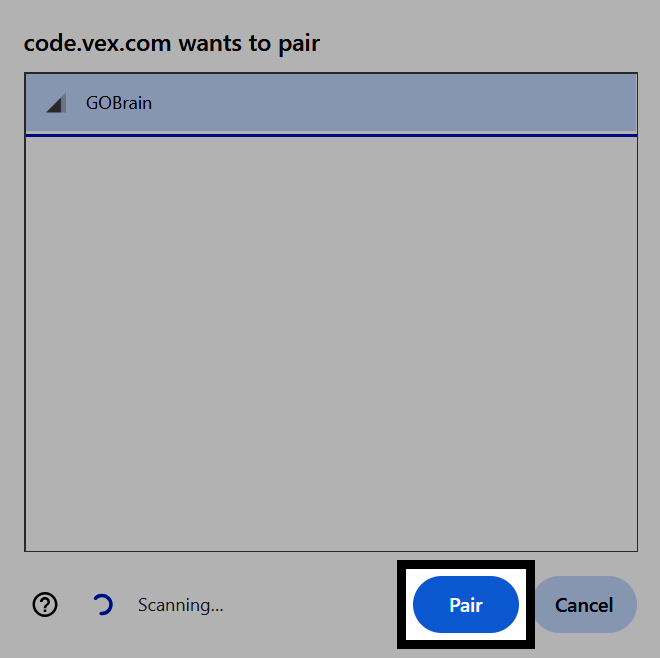
  1. Select Pair.

Screenshot of the browser's Bluetooth pairing dialog, with the Pair button highlighted.
  1. Once connected, the Wireless Connection section will show Bluetooth as Connected, and the Brain section will show its Device Name, Battery, and Firmware.
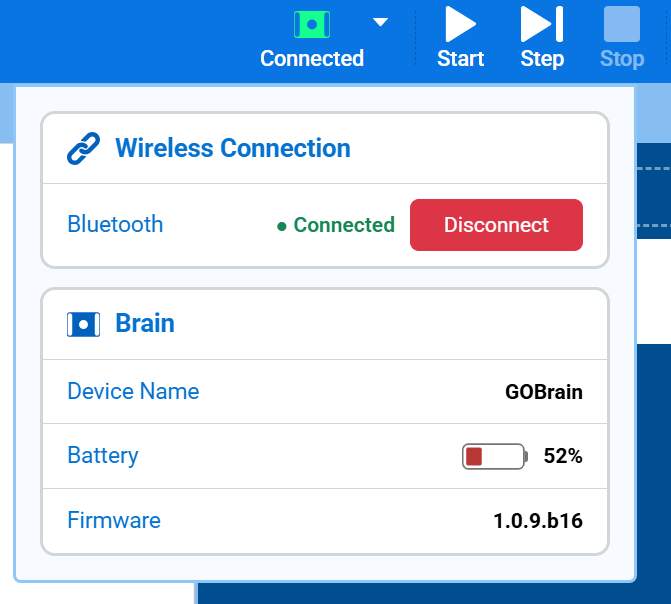
Screenshot of the Wireless Connection and Brain sections, showing Bluetooth connected and the Brain's Device Name, Battery, and Firmware.

To disconnect, select Disconnect.
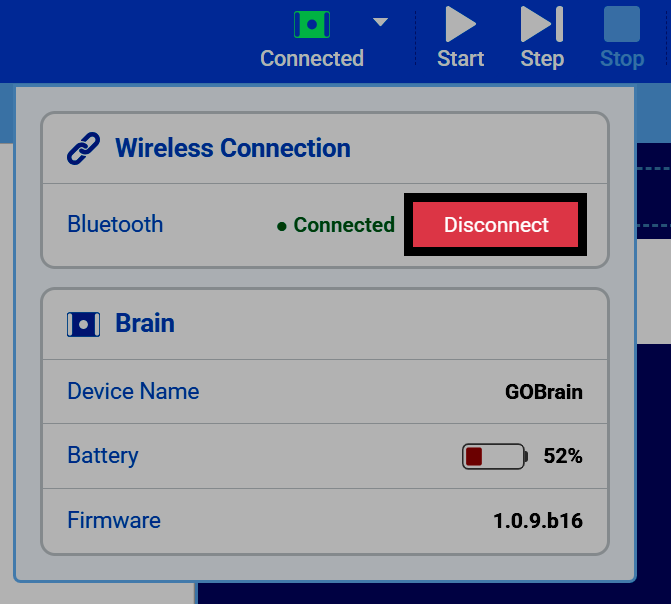
Screenshot of the Wireless Connection section, with the Disconnect button highlighted.