Using Help#
Using Help
This tutorial walks you through using the Help tab in VEXcode GO. By the end, you’ll have looked up what a block does using the Help tab.
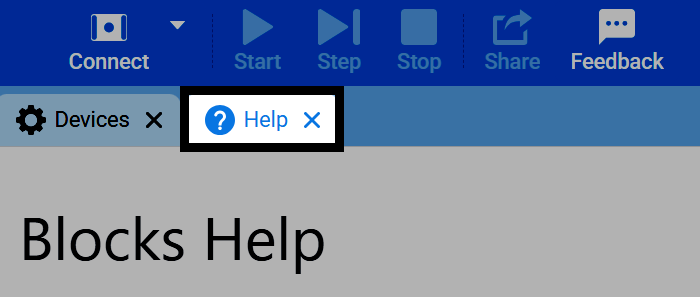
Select the Help tab in the top-right of VEXcode.
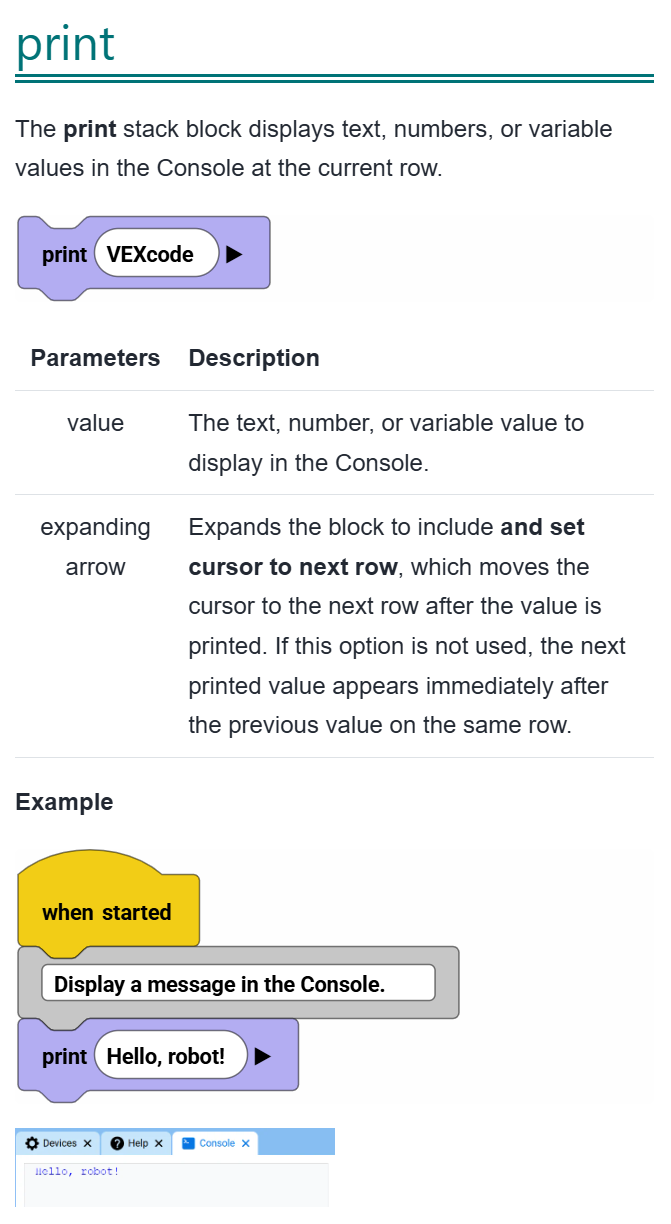
Select a block from the toolbox or in your workspace to open the Help information for that block. Each Help entry includes information about the block’s parameters, an example demonstrating its behavior, and any additional graphics to help you understand the block.
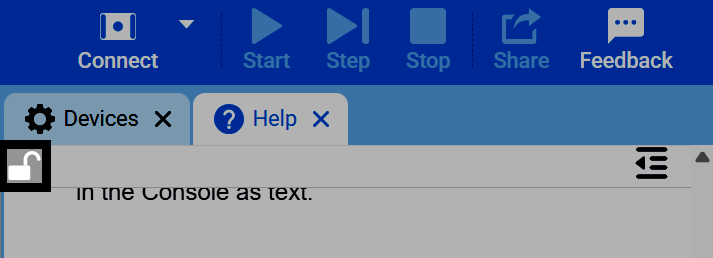
To start re-creating the example shown, select the lock icon. This makes sure VEXcode won’t open a new Help page if you select a different block.