• VEXcode Robotics Logo VEX Robotics Logo
  • VEX API Home Button VEX API Home Button
  • VEX 123 logo in purple VEX 123 logo in white
  • VEX GO logo in lime green VEX GO logo in white
  • VEXcode AIM logo in blue VEXcode AIM logo in white
  • VEX IQ logo in blue VEX IQ logo in white
  • VEX EXP logo in red VEX EXP logo in white
  • VEX V5 logo in red VEX V5 logo in white
  • VEX CTE logo in green VEX CTE logo in white
  • VEX AIR logo in orange VEX AIR logo in white
  • VEXcode VR logo in gold VEXcode VR logo in white
Skip to main content
Ctrl+K

< Back to Platform Select

  • VEX GO
  • VEX GO API Reference
  • VEXcode Tutorials
English
  • Spanish
  • 简体中文
  • VEXcode Robotics Logo

Section Navigation

  • Blocks
  • Python
  • VEXcode Tutorials
    • Navigating VEXcode
    • Moving Your Robot
    • Turning Your Robot
    • Connecting to Your Robot
    • Configuring Your Robot Build
    • Moving and Removing Blocks
    • Starting a Project
    • Naming and Saving Your Project
    • Opening a Project
    • Understanding the Drive Tab
    • Using Comment Blocks
    • Understanding Sequences
    • Creating a My Block
    • Stepping Through Blocks
    • Using Examples
    • Using Help
    • Wait Until True
    • Detecting Colors
    • Detecting Objects
    • Using the Electromagnet
    • Using the LED Bumper
Platform Navigation

  • VEX 123 logo in purple VEX 123 logo in white
  • VEX GO logo in lime green VEX GO logo in white
  • VEXcode AIM logo in blue VEXcode AIM logo in white
  • VEX IQ logo in blue VEX IQ logo in white
  • VEX EXP logo in red VEX EXP logo in white
  • VEX V5 logo in red VEX V5 logo in white
  • VEX CTE logo in green VEX CTE logo in white
  • VEX AIR logo in orange VEX AIR logo in white
  • VEXcode VR logo in gold VEXcode VR logo in white

VEXcode Tutorials#

A VEXcode GO workspace with starter blocks.

Navigating VEXcode

A VEX GO Code Base driving forward in VEXcode GO.

Moving Your Robot

A VEX GO Code Base turning in VEXcode GO.

Turning Your Robot

A VEX GO Robot connecting wirelessly to VEXcode GO.

Connecting to Your Robot

A VEX GO Robot build selection screen in VEXcode GO.

Configuring Your Robot Build

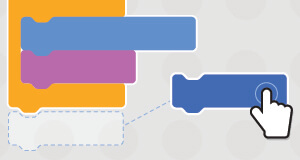
Blocks being moved in a VEXcode GO workspace.

Moving and Removing Blocks

A new VEXcode GO project being started.

Starting a Project

A VEXcode GO project being named and saved.

Naming and Saving Your Project

A saved project being opened in VEXcode GO.

Opening a Project

A VEX GO Robot being driven directly in VEXcode GO's Drive mode.

Understanding the Drive Tab

A Comment block attached below a when started block in VEXcode GO.

Using Comment Blocks

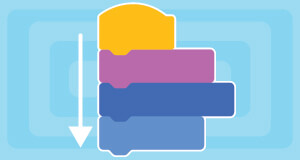
A VEXcode GO project demonstrating sequencing.

Understanding Sequences

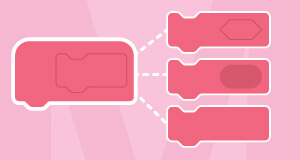
A VEXcode GO My Blocks workspace.

Creating a My Block

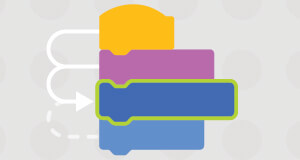
A VEXcode GO project being stepped through one block at a time.

Stepping Through Blocks

Example projects and templates in VEXcode GO.

Using Examples

Example projects and templates in VEXcode GO.

Using Help

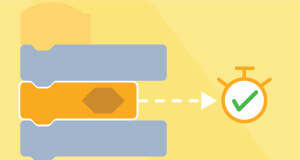
A VEXcode GO wait until true block example.

Wait Until True

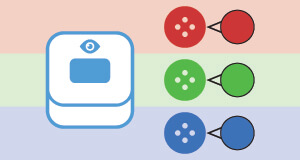
A VEX GO Eye Sensor detecting colored objects.

Detecting Colors

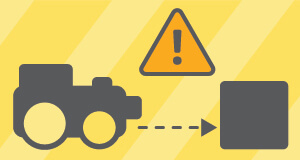
A VEX GO Eye Sensor detecting an object.

Detecting Objects

A VEX GO Robot moving colored disks.

Using the Electromagnet

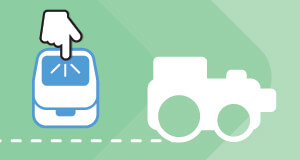
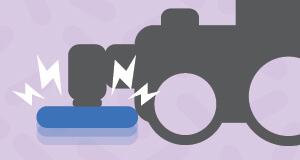
A VEX GO LED Bumper being pressed.

Using the LED Bumper
previous

String Formatting

next

Navigating VEXcode

Innovation First, International

VEX and VEX Robotics are trademarks or service marks of Innovation First, Inc. Copyright ©2026. All Rights Reserved. VEX Robotics, Inc. is a subsidiary of Innovation First International, Inc. All other product names / marks of others are the property of their respective owners. Patents and / or Patents Pending - innovationfirst.com/patents
Site Privacy Policy / Site Terms of Use / Cookie Policy / Software Privacy Policy

Visit the VEX Robotics Facebook Page Visit the VEX Robotics Twitter Page Visit the VEX Robotics Instagram Page Visit the VEX Robotics YouTube Page
VEX API Feedback Form

We value your feedback! Use this form to share suggestions, compliments, or report errors with the VEX API. Your input helps us enhance the VEX API documentation.

If you are experiencing technical issues or require customer support, please visit support.vex.com.

  • Send Happy Feedback
  • Send Sad Feedback

Note: the current URL will be shared with your message

By including your email address, you agree that VEX may send you email emails if we have questions about your feedback.
Privacy Policy >
Please provide your feedback. Feedback submitted successfully!
Choose Which VEX IQ Generation to View

VEX IQ (1st gen)

VEX IQ (2nd gen)