Configuring a Motor#

Configuring a Motor

This tutorial walks you through adding a Motor to your project. By the end, you’ll have a Motor device set up and ready to use in your blocks.

  1. Open the Devices tab. If the Devices tab is not visible, see Navigating VEXcode.
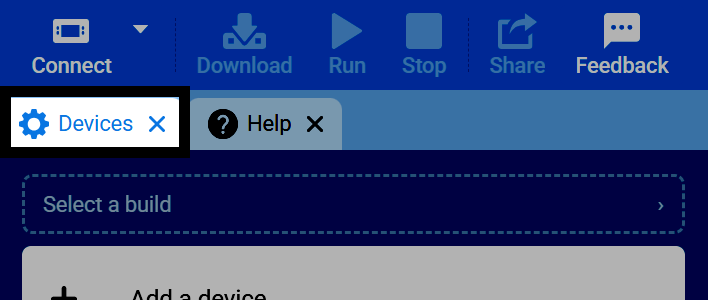
Screenshot of VEXcode's tab bar, with the Devices tab highlighted.
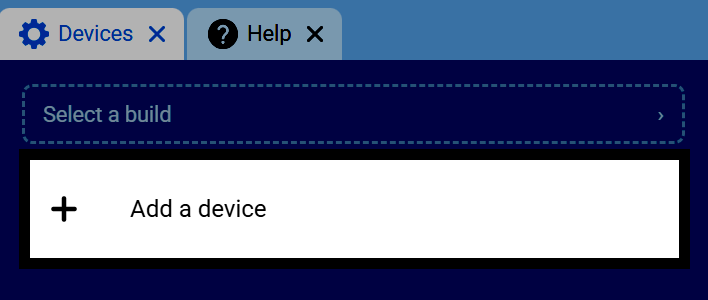
  1. Select Add a Device.

Screenshot of the Devices tab, with the Add a Device button highlighted.
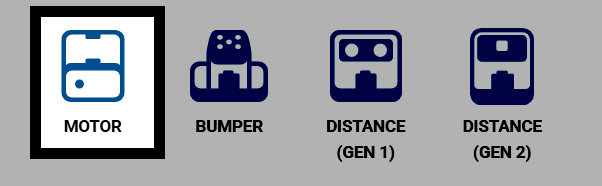
  1. Select Motor.

Screenshot of the Select a device screen, with Motor highlighted.
  1. Select the port the motor is connected to.
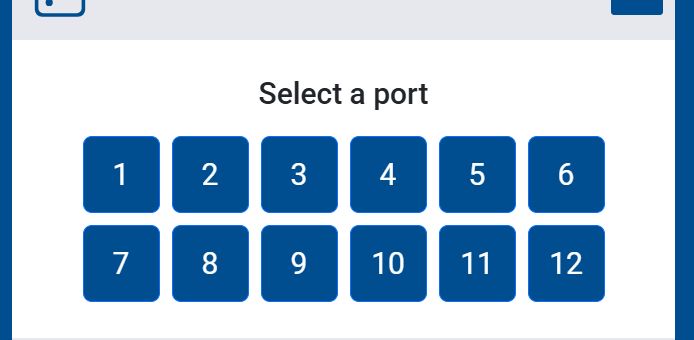
Screenshot of the Select a port screen for a Motor, showing ports 1 through 12 to choose from.
  1. Set the forward rotation: clockwise or counterclockwise.
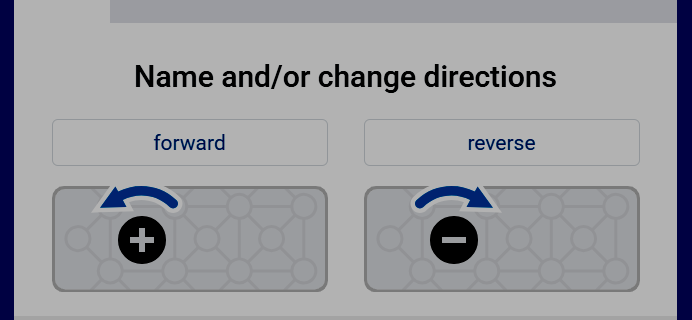
Screenshot of the Name and/or change directions screen for a Motor, showing forward and reverse direction options.
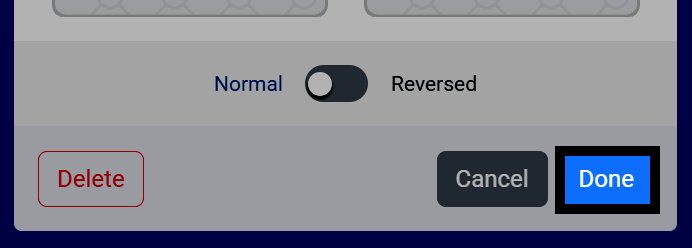
  1. Select Done.

Screenshot of the Name and/or change directions screen for a Motor, with the Done button highlighted.
  1. The motor will now appear in your list of devices, and its blocks will be added to your toolbox.
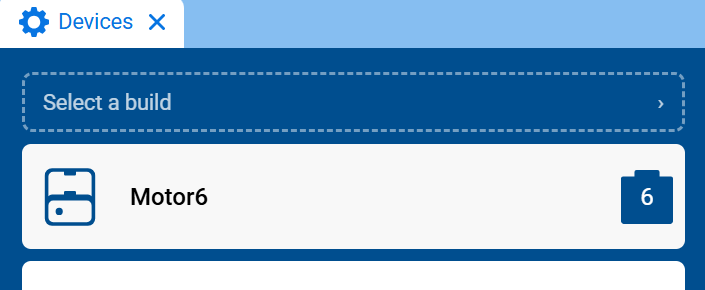
Screenshot of the Devices tab, showing Motor6 in the list of devices.
  1. The motor’s blocks will now appear in the toolbox, within the Motion category.
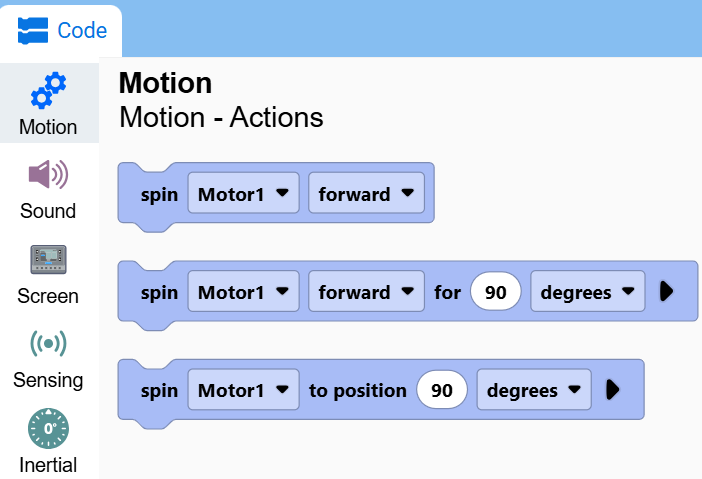
Screenshot of the toolbox with the Motion category open, showing the spin Motor1 blocks.