Configuring a Motor#
Configuring a Motor
This tutorial walks you through adding a Motor to your project. By the end, you’ll have a Motor device set up and ready to use in your blocks.
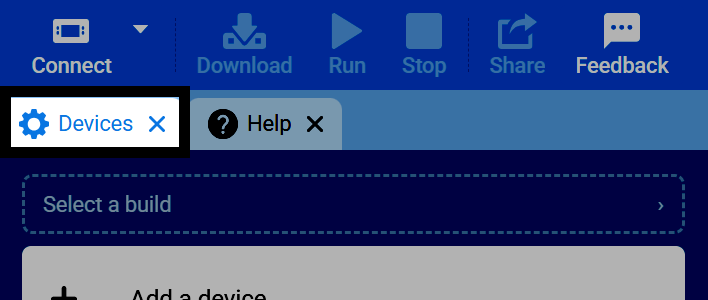
Open the Devices tab. If the Devices tab is not visible, see Navigating VEXcode.
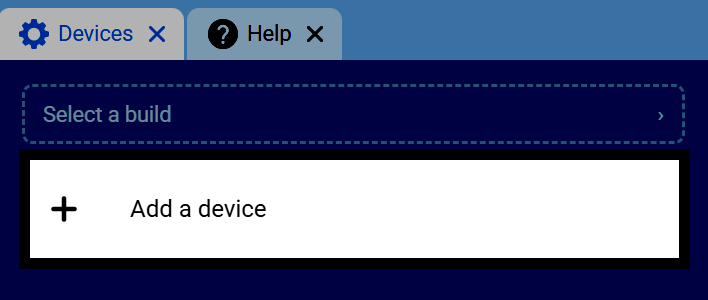
Select Add a Device.
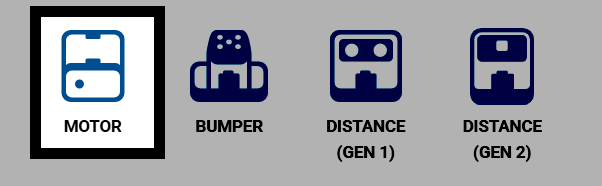
Select Motor.
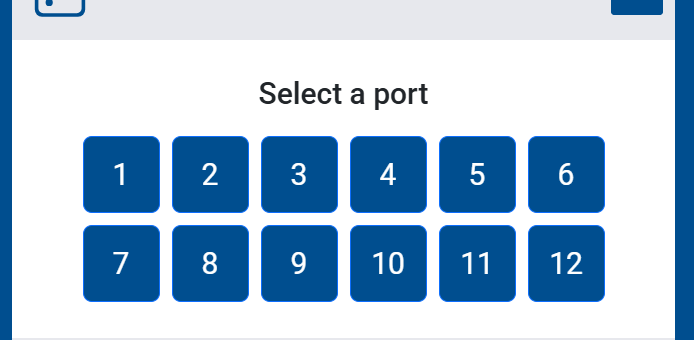
Select the port the motor is connected to.
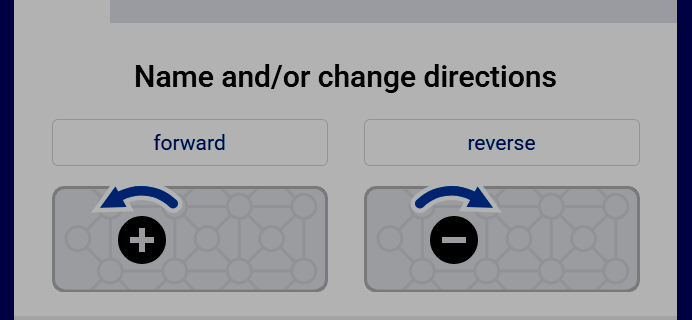
Set the forward rotation: clockwise or counterclockwise.
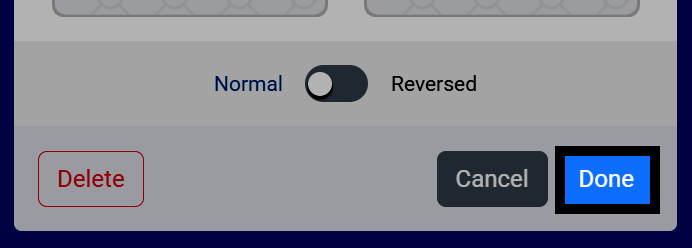
Select Done.
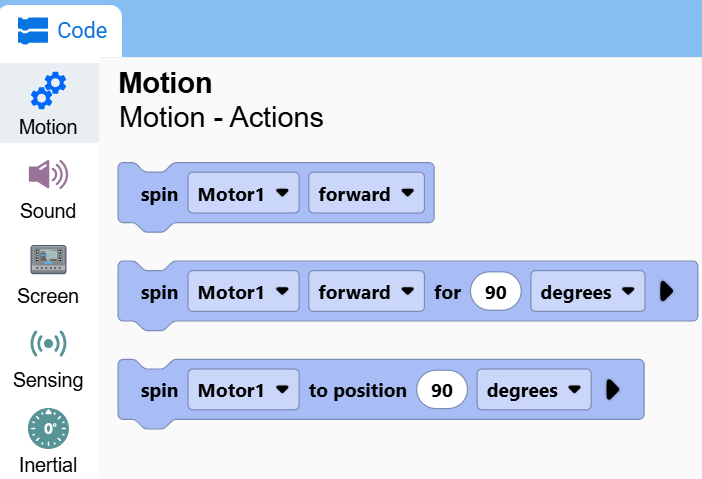
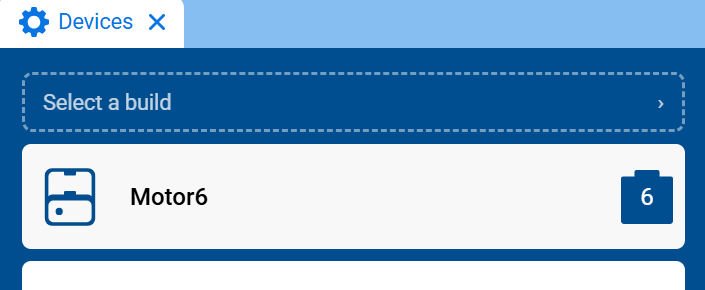
The motor will now appear in your list of devices, and its blocks will be added to your toolbox.
The motor’s blocks will now appear in the toolbox, within the Motion category.