
If Then Blocks#
This tutorial covers how to use if/else blocks to make your robot check a condition and decide which blocks to run. By the end, you’ll know how to set up a condition and control what happens when it’s true or false.
Drag a Boolean block into the empty condition slot in the if then branch.
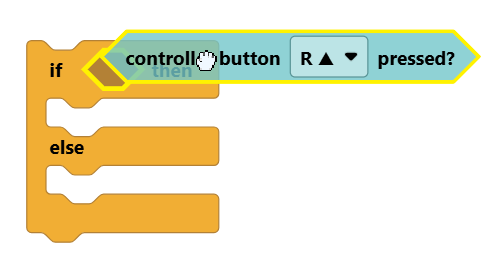
All Boolean blocks are hexagon-shaped and have a question mark in its name, such as the controller button pressed? block.
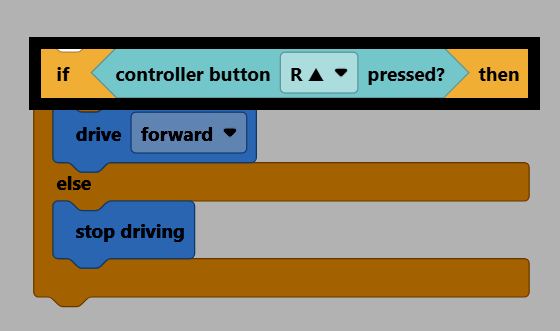
If the condition is true, the blocks inside the if then branch will run.
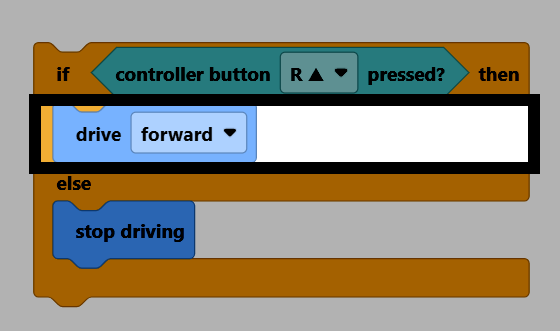
If the condition is false, the blocks inside the else branch will run.
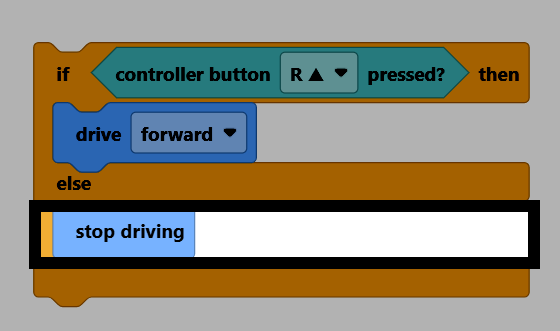
An if/else block only checks its condition once. If you want the condition to be checked repeatedly, put the if/else block inside a looping block, like forever.
    forever
        if <Controller [R ▲ v] pressed?> then
            drive [forward v]
        else
            stop driving
        end
    end
The if block is only the if then branch. If the condition isn’t true, nothing will happen.
    if <Controller [R ▲ v] pressed?> then
        drive [forward v]
    end
The if / else if / else block can be used to test multiple conditions one after another. It can be expanded to test as many conditions as needed.
    if <Brain [◀ v] button pressed?> then
        turn [left v] for (90) degrees ▶
    else if <Brain [▶ v] button pressed?> then
        turn [right v] for (90) degrees ▶
    else if <Brain [Check v] button pressed?> then
        stop driving
    else
        drive [forward v]
    end